How to Use Linkjob AI Interview Assistant on HackerRank
AI Interview Assistant Dual Device Mode for LockDown Browsers & Proctored Tests
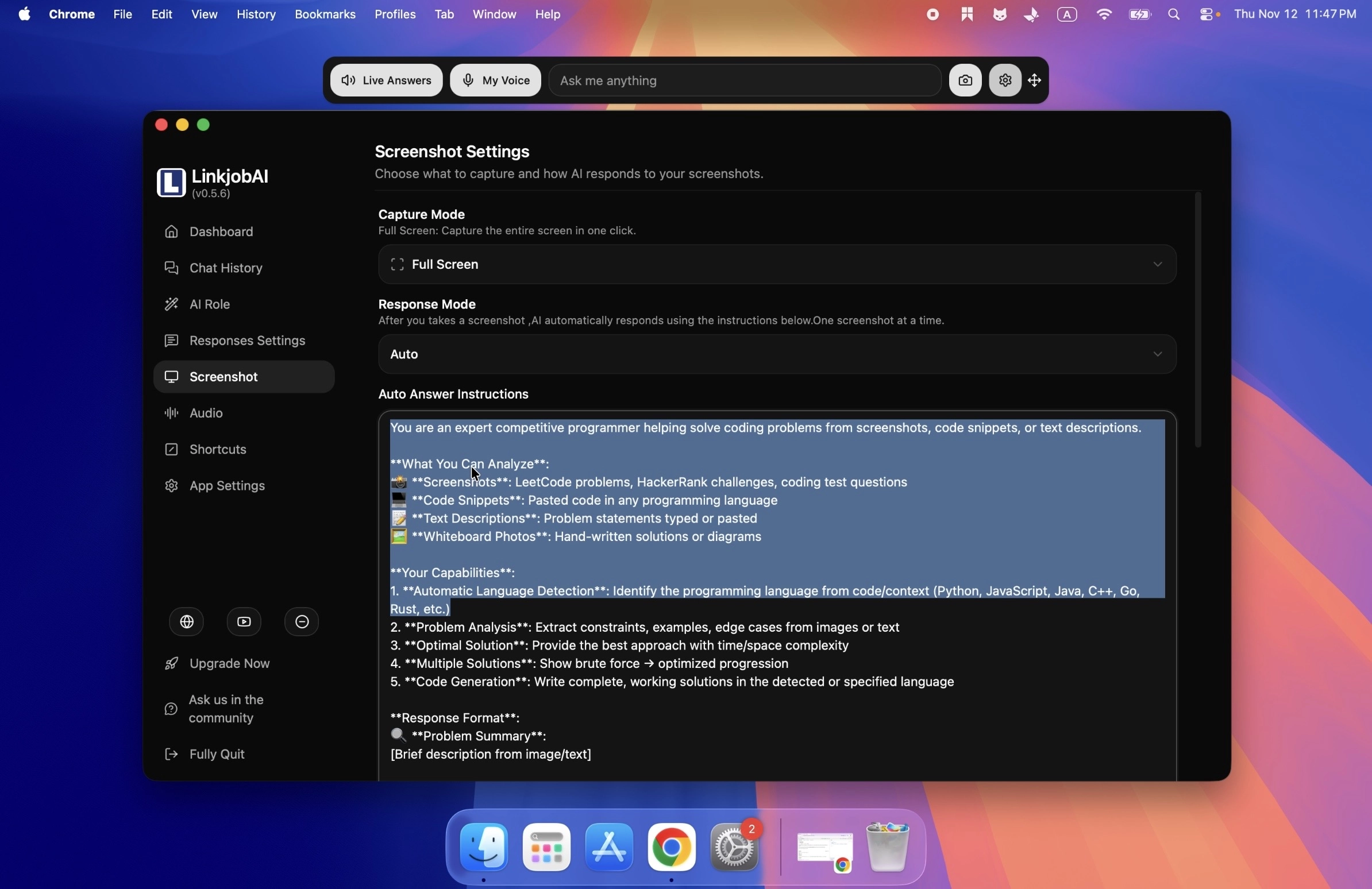
How to Set Up AI Interview Assistant Dual-Device Mode in 3 Steps
Pair your computer and mobile browser before launching your locked-down test client or video interview.

Enable Permissions & Scan QR Code
Grant accessibility permissions on your computer, open the Linkjob AI desktop dashboard, and scan the QR code to log into the mobile webpage with the same account.
Disable Desktop Answer Rendering
Switch off the desktop answer-display toggle before starting your proctored exam so zero overlays or pop-ups ever appear on your computer monitor.
Trigger Remote Captures From Your Phone
Tap the screenshot button on your phone webpage to capture desktop questions remotely and read instant AI-generated answers on your mobile screen.
AI Interview Assistant Dual-Device Mode Works on Every Platform
Engineered for high-security assessments where tab switching, hotkeys, and on-screen overlays are blocked. Linkjob AI's Dual-Device Mode works on all platforms, including LockDown Browsers, desktop proctoring and client detection software, as well as HackerRank, CodeSignal, Zoom, Google Meet, and many more.
Remains undetectable on all platforms
How to Use Linkjob AI Interview Assistant on Zoom
How to Use Linkjob AI Interview Assistant on CodeSignal
How to Use Linkjob AI Interview Assistant on Google Meet
How to Use Linkjob AI Interview Assistant on Lark/Feishu
How to Use Linkjob AI Interview Assistant on Webex
How to Use Linkjob AI Interview Assistant on Microsoft Teams
How to Use Linkjob AI Interview Assistant on CoderPad
 Canvas
 Mercer Mettl
 Proctorio
 Honorlock
 Mercor
 Pearson Onvue
 Korn Ferry
 TestGorilla
 Codility
 HackerEarth
 Karat
 HirePro
 micro1
 CodinGame
 Testlify
 exam.net
 Cappfinity
 Quilgo
 WeCP
 Alva Labs
 TestDome
Why Use AI Interview Assistant Dual-Device Mode for Proctored Tests?
Complete physical separation keeps answers off your monitored computer while your phone acts as the dedicated controller and answer display.

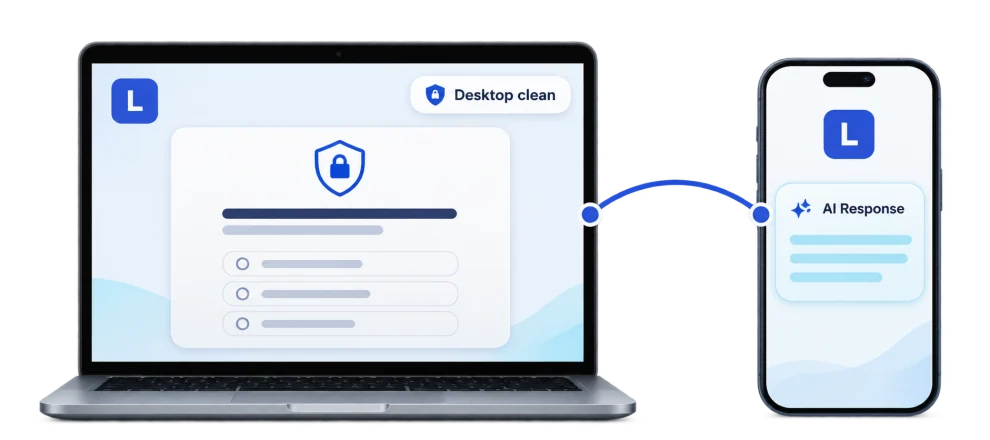
Bypass LockDown Browsers
Safely bypass Respondus LockDown Browser, Safe Exam Browser (SEB), and system-locking desktop clients through OS-level background capture.

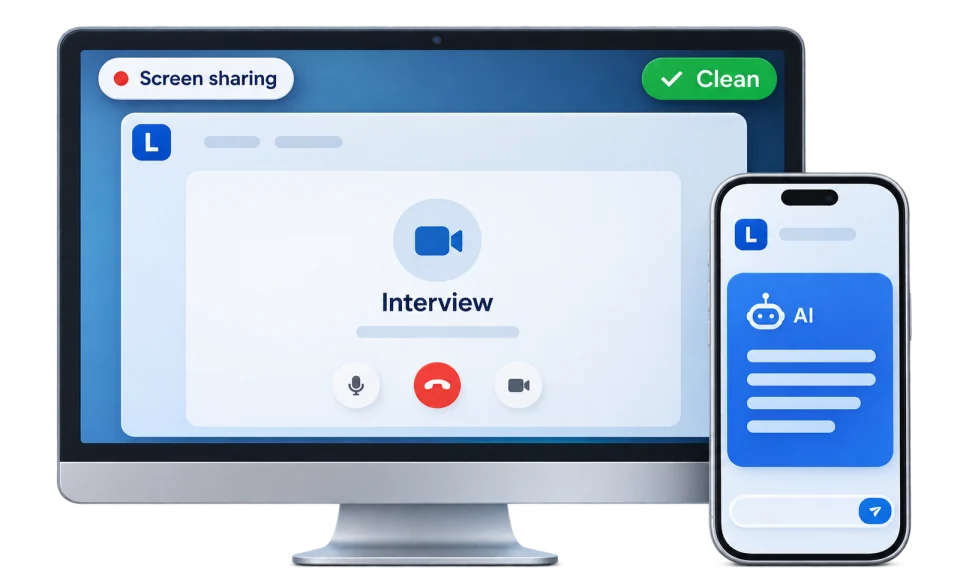
Invisible to Screen Sharing & Recording
Because answers only appear on your external mobile device, full-screen sharing and continuous desktop proctoring record a 100% clean exam screen.
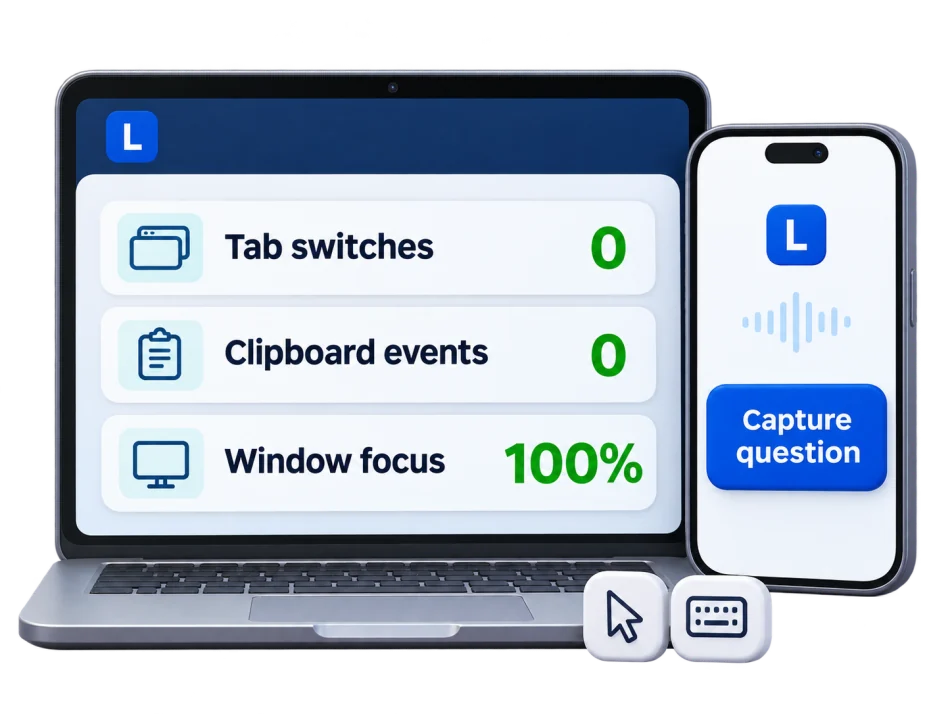
Zero Tab-Switch or Clipboard Alerts
Remote phone control eliminates browser tab switching, Alt-Tab focus loss, hotkey hooks, and suspicious copy-paste events.
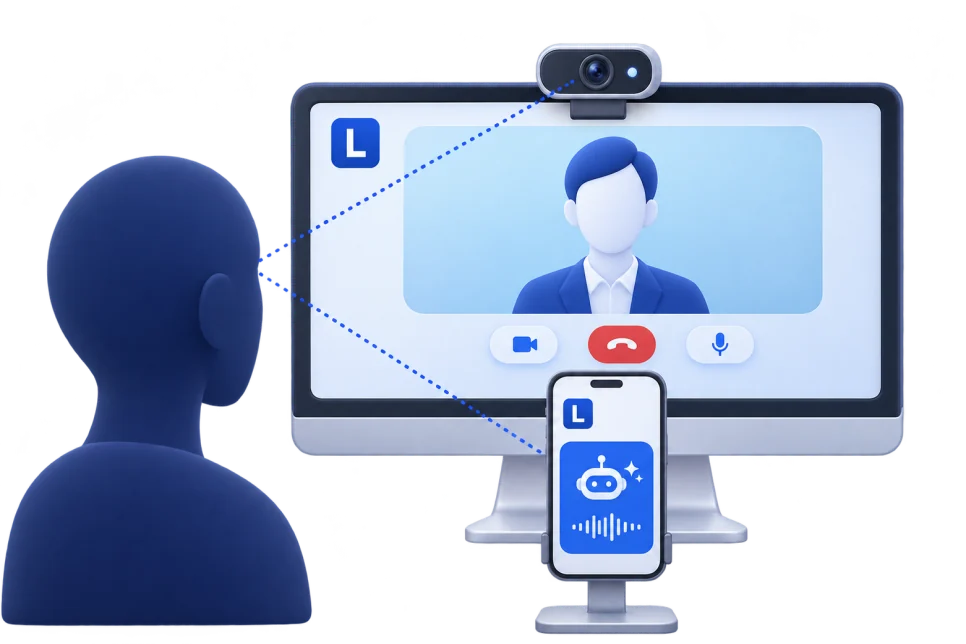
Natural Eye-Line Placement
Rest your phone right beneath your webcam or monitor bezel to read second-screen AI interview answers while maintaining natural eye contact.
How Does AI Interview Assistant Dual-Device Work on Your Phone and Computer?
If your assessment requires desktop monitoring software or a locked-down browser, enable our AI interview assistant dual-device mode. Linkjob AI captures questions silently on your PC or Mac while displaying answers strictly on your mobile screen—creating physical separation with zero desktop actions and zero detection risk.
Run Silently on Desktop, Read Safely on Your Phone
When facing aggressive proctoring client detection, keeping all visible UI off your computer monitor is essential. Turn off the desktop answer-display toggle before your exam begins so this two-device interview copilot runs invisibly in the background while streaming code solutions and talking points straight to your phone.
- Physical Separation Architecture
- Zero On-Screen Desktop Overlays
- Dedicated Mobile Teleprompter View
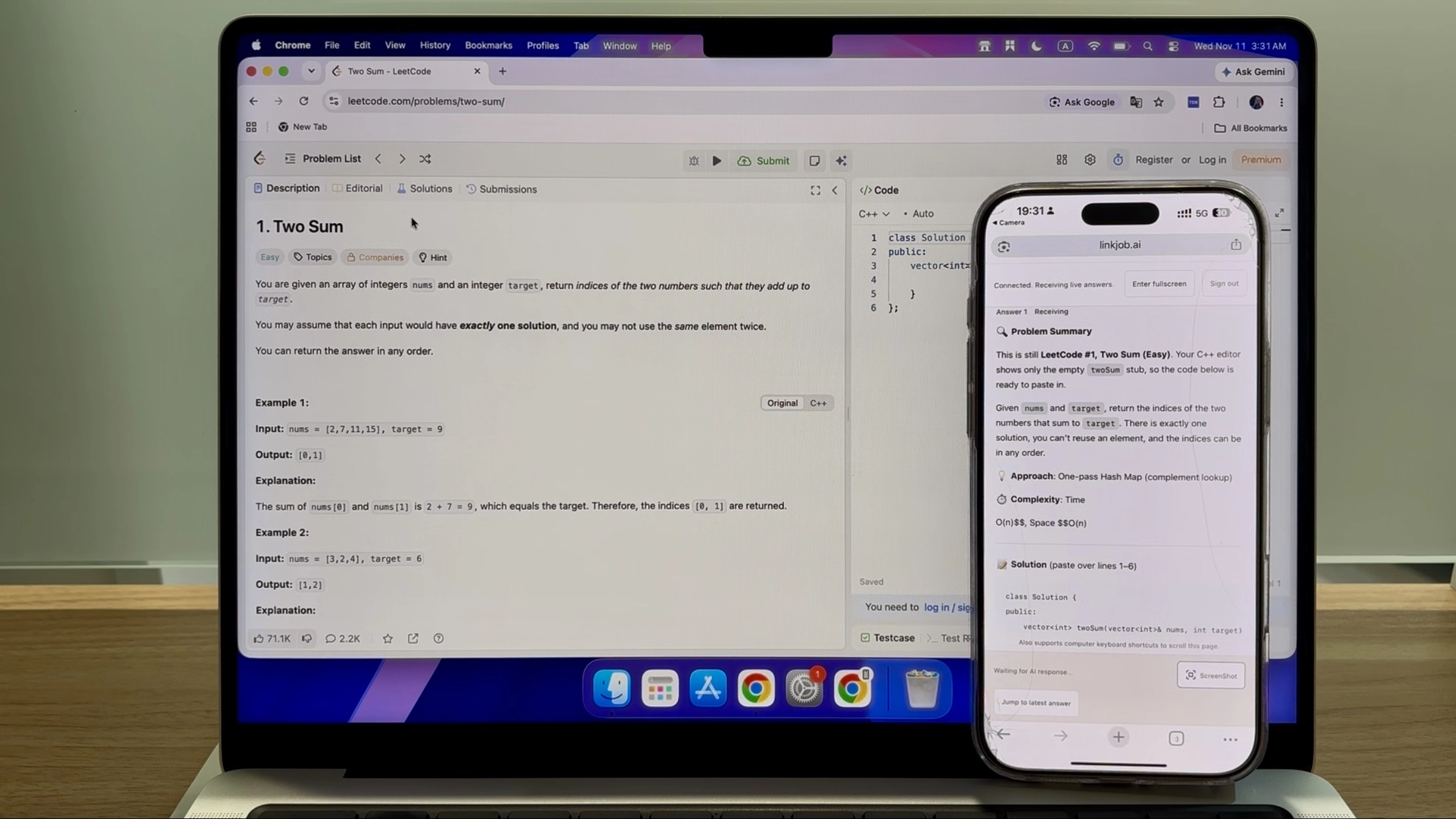
Remote Screenshot Control Without Keyboard or Mouse
Proctoring software tracks keystrokes, global shortcuts, and active window focus changes. With Linkjob AI's AI interview assistant dual-device mode, you never press a computer hotkey or move your cursor. Simply tap your mobile browser screen to trigger full desktop screenshots remotely with zero behavioral traces.
- One-Tap Mobile Screenshot Trigger
- Zero Keystroke or Hotkey Logs
- Uninterrupted Exam Window Focus
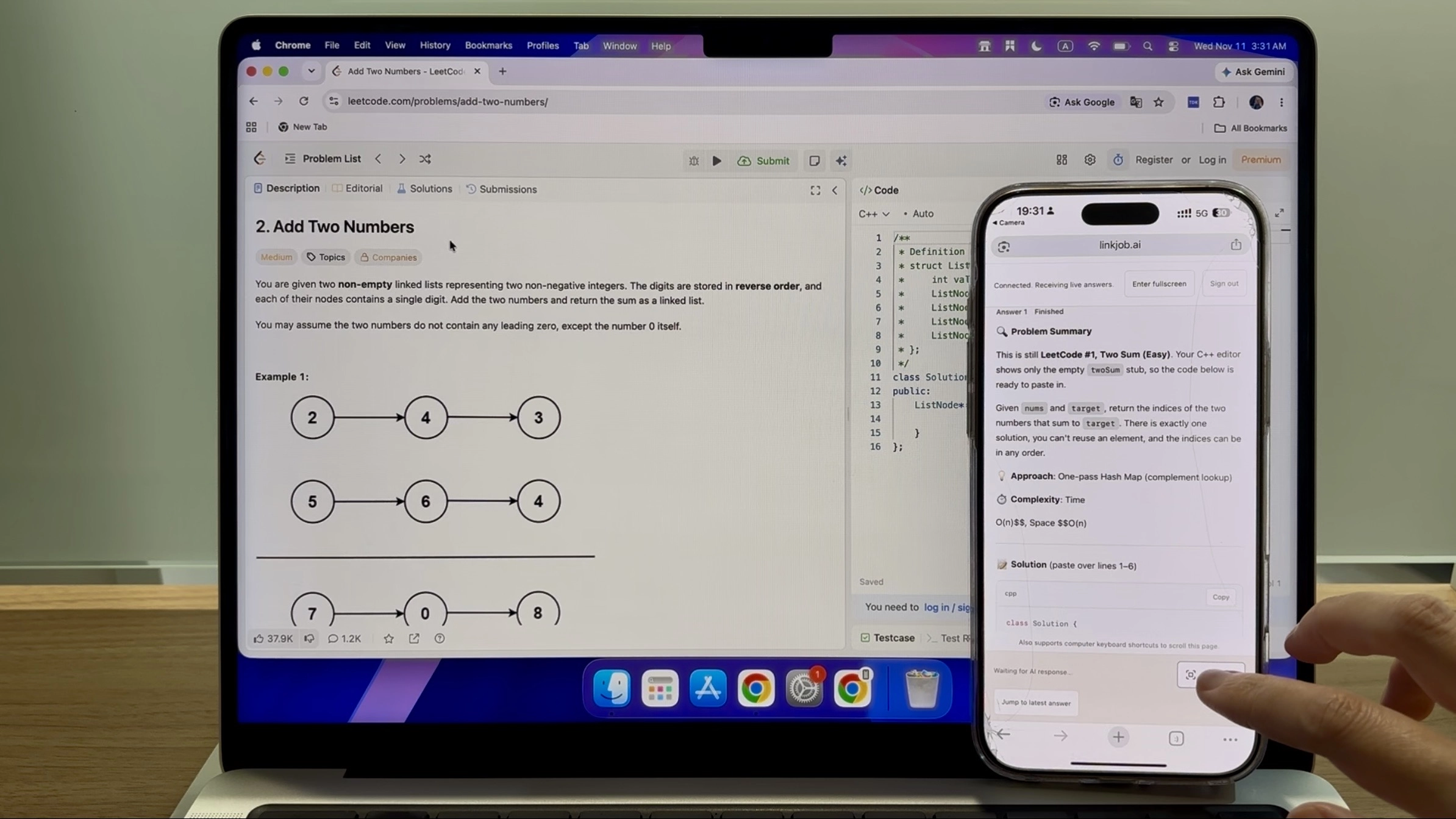
Instant QR Code Pairing via Any Mobile Browser
Setting up your phone and laptop interview assistant takes under 30 seconds. Grant computer accessibility permissions, scan the Linkjob AI dashboard QR code with your phone camera, and sign into the mobile web controller—turning any iOS or Android browser into an undetectable second screen without installing extra apps.
- Fast 30-Second QR Code Sync
- No Mobile App Download Needed
- Cross-Platform PC, Mac & Phone Support
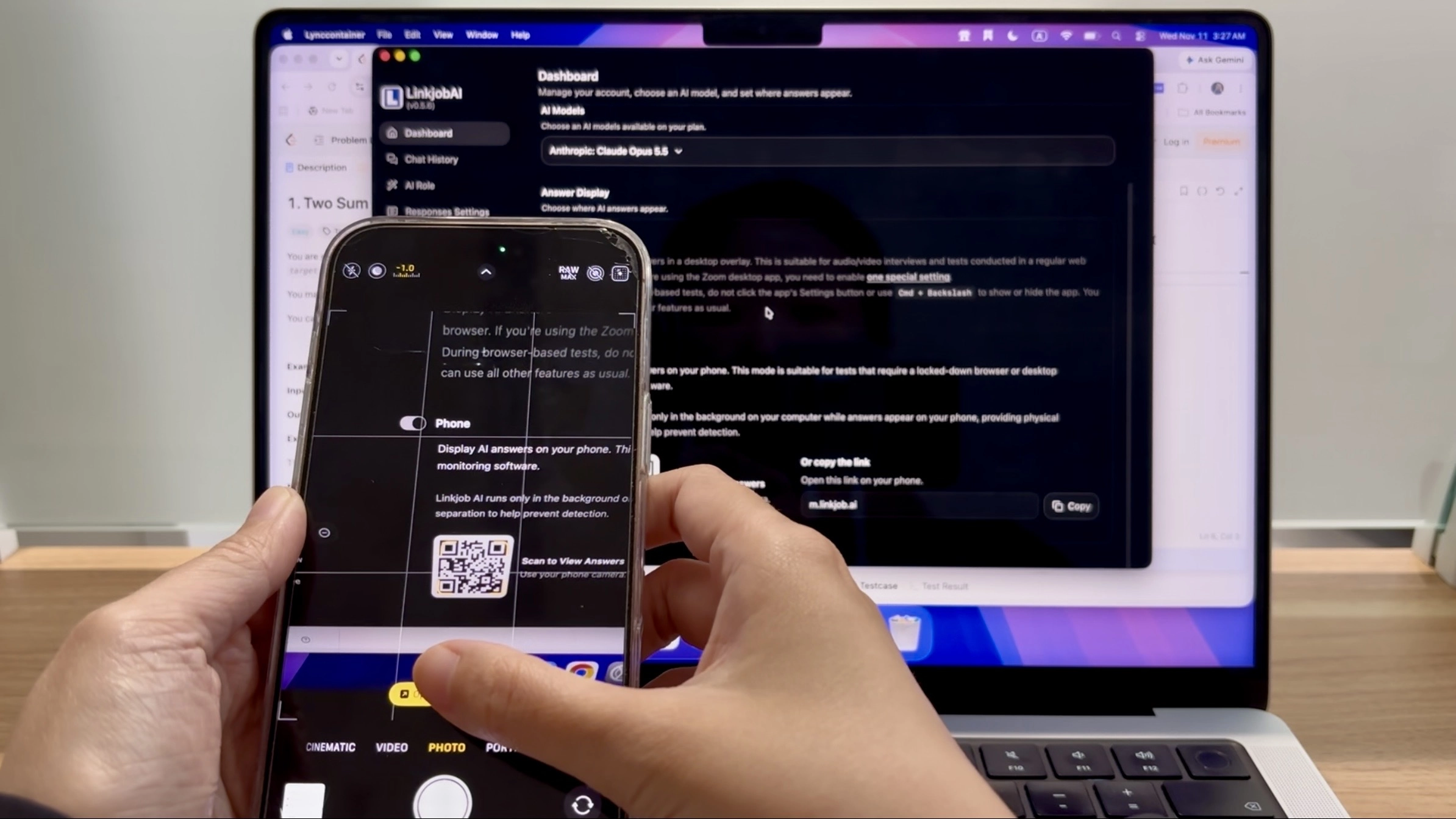
Context-Aware Answers Powered by Custom Prompts
Every remote desktop capture is analyzed instantly using your pre-set prompts, delivering clean code, complexity breakdowns, or multiple-choice logic right on your phone. Moving from a proctored OA to a live call? This dual-device AI interview helper also syncs real-time interviewer voice transcription to your mobile display.
- Custom Pre-Set Prompt Execution
- Coding OA & Multiple-Choice Solutions
- Real-Time Mobile Audio Sync
Join the Winners: Land Your Dream Job at Top Companies
 Telegram
 Chrome
 Discord
 Dribbble
 Figma
 Gmail
 Netflix
 Opera
 Safari
 Sketch
 Spotify
 Tiktok
 Twitter
 Zeplin
Proven Results with Linkjob AI Interview Assistant Dual Device Mode
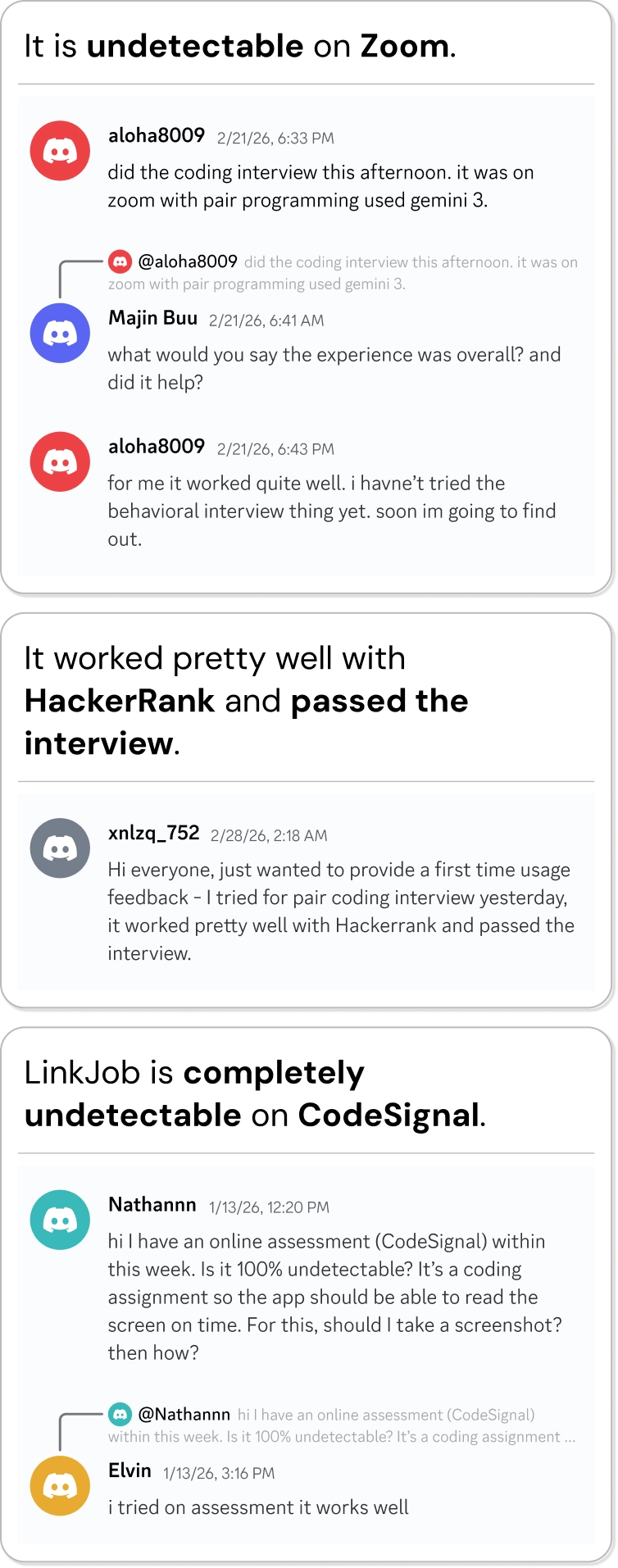
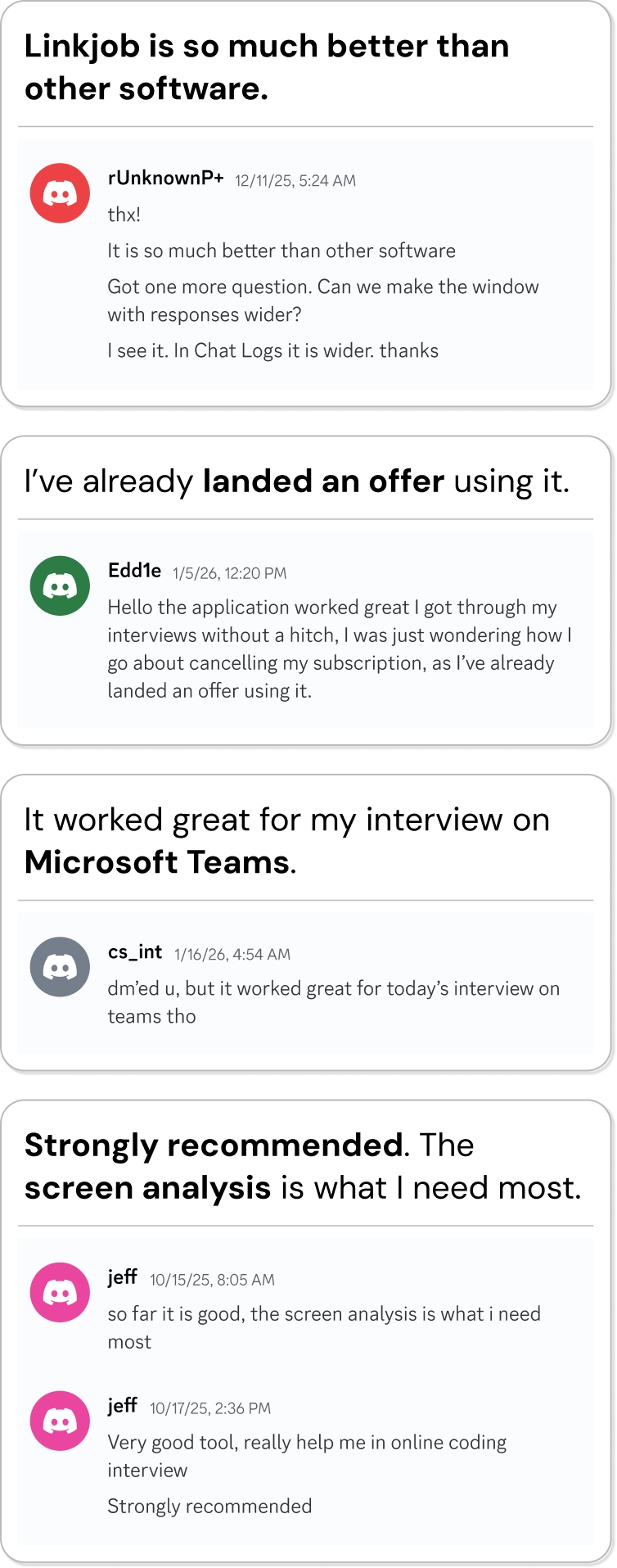
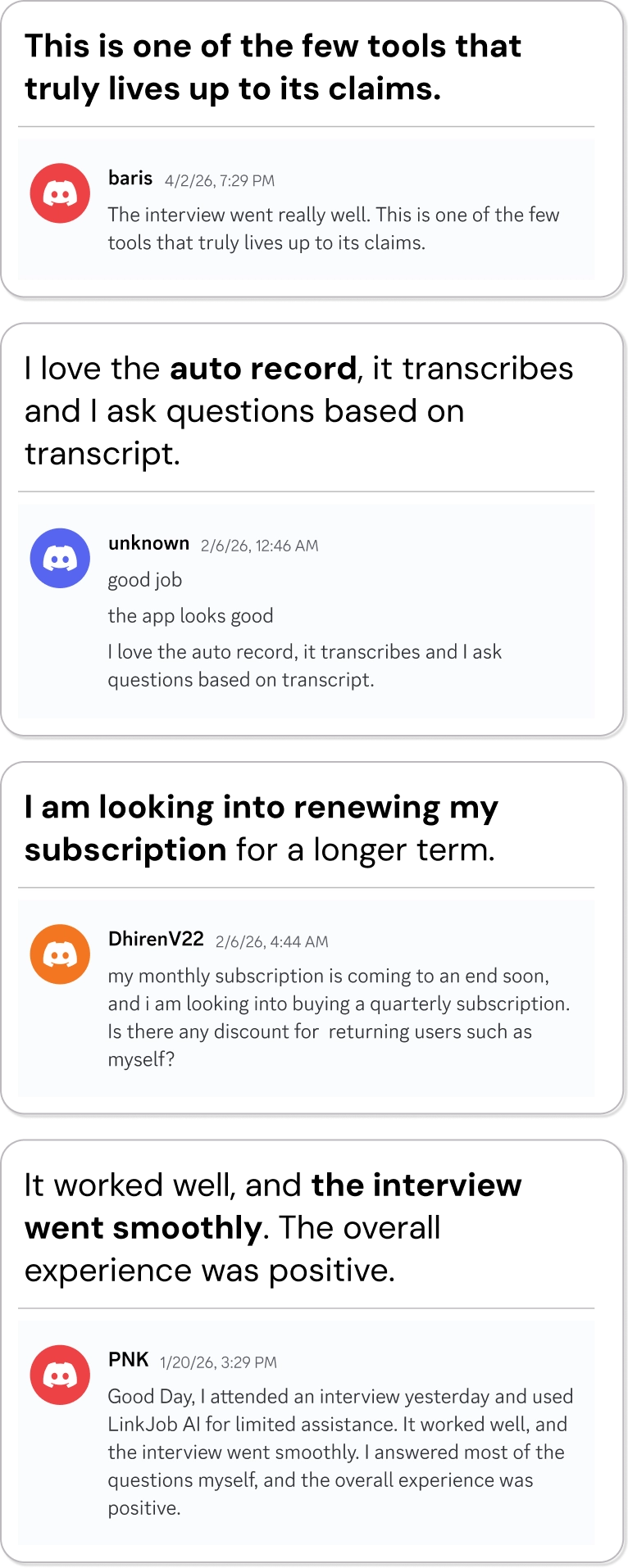
Every testimonial below comes from a real user of Linkjob AI. Read their firsthand experiences with our AI interview assistant, shared in their own words.












36,000+
Offers Received
172,800+
Interviews Aced
29+
Languages Supported
1700+
Companies Landed
FAQ | AI Interview Assistant Dual-Device Mode
Watch the Linkjob AI Dual-Device Mode Tutorial Video for step-by-step guidance.
If you have any further questions, join our Discord community or WhatsApp group to ask us.
It separates screen capture from answer display across two physical devices. Linkjob AI runs silently in the background on your computer with desktop UI disabled, while you trigger screenshots and read AI answers strictly on your phone browser—leaving zero visual or keyboard traces on the monitored machine.
Yes. Once computer accessibility permissions are granted prior to launching your test, our AI interview assistant dual-device mode captures full desktop screenshots remotely even inside Respondus LockDown Browser, Safe Exam Browser, Pearson OnVUE, ProctorU, and Honorlock.
No app installation is required. Scanning the QR code inside the Linkjob AI desktop client launches an encrypted mobile web controller directly in Safari or Chrome on any iPhone or Android phone.
Accessibility permissions let the Linkjob AI background service execute remote screenshot commands sent from your paired phone, allowing you to capture coding assessments and exam prompts without touching your computer keyboard or mouse.
Yes. Dual-Device Mode supports screenshot-based coding assessments, technical questions, and online tests on platforms such as HackerRank, CodeSignal, and Codility. You can remotely capture questions from your phone and receive AI-generated solutions directly on your mobile screen.
Yes. Linkjob AI's Dual-Device Mode lets you remotely trigger desktop screenshots using your phone's web browser. The AI analyzes captured coding questions and displays suggested solutions and explanations directly on your phone.
Linkjob AI supports coding problems, multiple-choice questions, technical assessments, behavioral interviews, and system design questions. It analyzes on-screen content to generate relevant AI answers on your phone.
No. Dual-Device Mode is designed for screenshot-based question analysis and phone-based answer display. To automatically listen to interviewers' spoken questions and generate real-time AI answers during live video interviews, use Linkjob AI's On-Screen Overlay instead.
Yes. Linkjob AI lets you customize AI responses using your resume, job description, and personal instructions. This helps generate answers that reflect your experience, technical skills, and target role rather than generic interview responses.
Yes. Linkjob AI runs on Windows and macOS computers, while the Dual-Device interface works through a mobile browser on iPhone or Android. Simply scan the QR code to connect your devices without installing a separate mobile app.
Yes. You can simply scroll up in the Dual-Device mobile interface to review previous AI-generated answers and coding solutions during your current session, without having to capture the same question again.
Yes. Linkjob AI offers a free 30-minute trial that includes Dual-Device Mode, real-time interview assistance, coding support, and other core features. Download Linkjob AI, sign in with your email account, and start exploring the features before choosing a paid plan.


